
Chrome extension
Your wishlist, one click from every shop
Like something on a website? The extension saves it to your Khadoo wishlist, with its title, price and link. Here’s how to use it, in five minutes.
Free, for Chrome on desktop.


You also need the Khadoo app on your phone: it’s what connects the extension to your account.


How it works
Install the extension
In Chrome on your computer, open the Khadoo page on the Chrome Web Store.
- Click Add to Chrome.
- Confirm with Add extension.
Pin it next to the address bar
Chrome tucks new extensions into a menu. Pin Khadoo to keep it within reach.
- Click the puzzle piece icon at the top right of Chrome.
- Click the pin next to Khadoo.
Extensions
Full access
 Khadoo
Connect it to your account
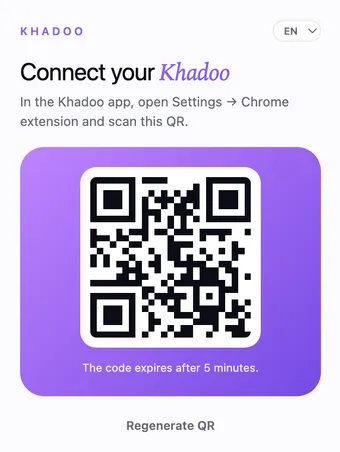
No password to type: the extension connects with a QR code, scanned from the app.
- Click the Khadoo icon in Chrome: a QR code appears.
- On your phone, open the Khadoo app, go to the My space tab, then Settings.
- Tap Chrome extension, then Connect the extension, and scan the QR code.
The code expires after 5 minutes. If it has, click “Regenerate QR”.
Add a wish in one click
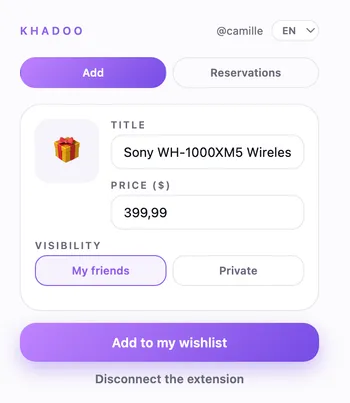
On a product page, in any online shop, click the Khadoo icon.
- Title, price, photo and link are filled in for you. Adjust them if needed.
- Choose who sees it: My friends or Private.
- Click Add to my wishlist: the wish shows up in the app right away.
Make sure you’re on the product page itself, not a list of results.
Find your reservations
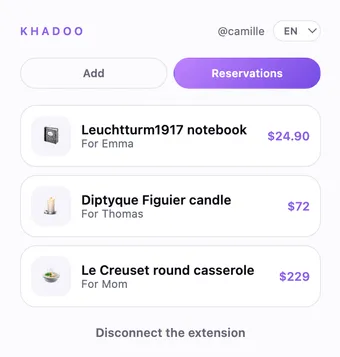
Reserved a gift for someone in the app? It’s waiting for you in the extension’s “Reservations” tab.
- Each gift shows who it’s for and its price.
- Click it to open the shop and buy it.
Frequently asked questions
Do I need the Khadoo app to use the extension?
Yes. The extension adds wishes to your Khadoo account, and you connect it from the app by scanning a QR code. The app is free on iPhone and Android.
Which websites does the extension work on?
Most online shops. If a field stays empty (the price, for example), you can fill it in by hand before adding the wish.
The extension says “Open a product page to add a wish”. Why?
You’re on a home page, a list of results or a page that isn’t a shop. Open the page of the product you want, then click the Khadoo icon again.
The QR code doesn’t work. What should I do?
It expires after 5 minutes: click “Regenerate QR” in the extension and scan the new one. Also make sure you scan it from the app (My space → Settings → Chrome extension), not with your phone’s camera.
Does the extension work on my phone?
No: it’s made for Chrome on desktop. On your phone, add wishes directly in the Khadoo app.
Can the extension see what I do online?
No. It only reads the page when you click its icon, sends nothing until you add a wish and never accesses your browsing history.
How do I disconnect it?
Click “Disconnect the extension” at the bottom of the extension, or in the app go to My space → Settings → Chrome extension and tap “Disconnect”. To remove it from Chrome, right-click its icon and choose “Remove from Chrome”.
Ready to try it?
Install the extension, connect it with one scan, and the next thing you spot online is already on your list.
Add to Chrome